
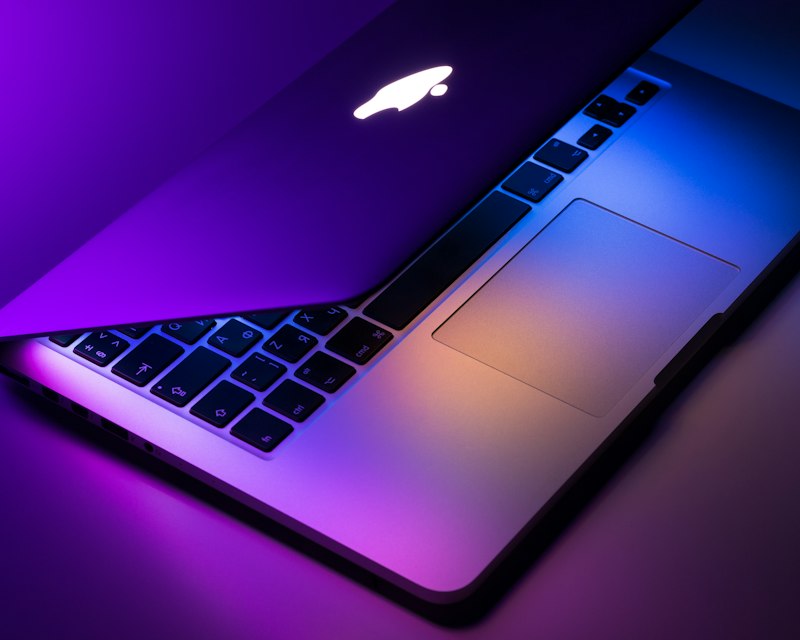
Your lock screen is the gateway to your Mac. For years, it was limited to static images. With macOS 26, Apple opened the door for dynamic content — and Wallspace was built to take advantage. Here's a deeper look at how lock screen support works.
Technical Overview
Lock screen live wallpapers in Wallspace use the same video pipeline as desktop wallpapers. When you apply a wallpaper, the app registers it with the system for both the desktop and lock screen. The video file is played in a loop, with the system handling display state (e.g., pausing when the display sleeps).
Unified Experience
One of the design goals was consistency. You don't configure desktop and lock screen separately. Pick a wallpaper, apply it, and both surfaces update. The result: your Mac feels like a single, cohesive environment from the moment you wake it to the moment you start working.
Requirements and Limitations
- macOS 26+ — Required for lock screen live wallpaper support
- Wallspace Pro — Lock screen is a Pro feature
- Same wallpaper — Currently, desktop and lock screen share the same wallpaper. Per-surface selection may come in future updates
Performance Considerations
The lock screen only displays when your Mac is awake and locked. When you're logged in and working, it's not active. When the display sleeps, playback stops. So the performance impact is limited to the moments when you're actually looking at the lock screen.
Frequently Asked Questions
Does it work with custom MP4s?
Yes. Any wallpaper you set in Wallspace — curated or custom — extends to the lock screen when the feature is enabled.
Can I disable lock screen but keep desktop?
Yes. You can use a static lock screen wallpaper in System Settings while keeping a live wallpaper on your desktop.
Is it available on all Macs?
Any Mac that supports macOS 26 can use lock screen live wallpapers with Wallspace Pro.
Conclusion
Lock screen support completes the Wallspace experience. Download Wallspace and upgrade to Pro to enable it.
Extend your wallpaper. Get Pro.